
Tips & Tricks for Personalizing your Project!
updated 8/29/25
Changing the Name of your Website
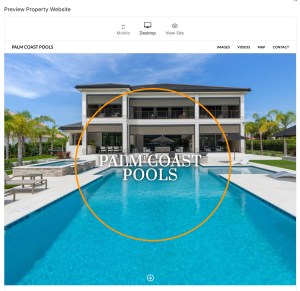 The custom property name option allows you to override the adress that is displayed with either a different address, or a tagline such as "Just Listed". To update the listing name for the property website:
- Expand the "Property Details" section
- Enter the name in the "Custom Property Name" field – feel free to enter whatever you'd like
- Click "Save" at the bottom of the section/page
- View update on website
Changing your Website Template
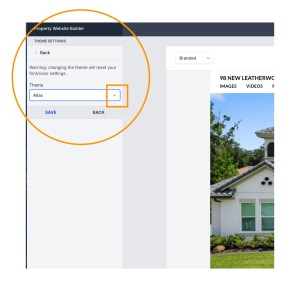 There are multiple options for changing the look of your website.
- From your dashboard, select "Property Website Editor."
- Click the "Theme" box and select a new template
- Click "save"
- View updates on website
- Note: You can change the template as many times as you'd like – you will not alter the order of your pictures.
Hiding Images from your Websites
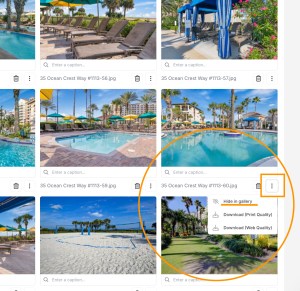 Often times I add photos at the end of a project that are "extra" and may not be suitable for your marketing purposes. If you would like to hide them, this is how you do it:
- Go to your property dashboard and open the Images tab.
- Scroll to the image(s) you don't want
- Click the three vertical dots button to exand your photo options
- Click "hide in gallery"
- Scroll to bottom of page and click "save"
Rearranging Images in your Websites
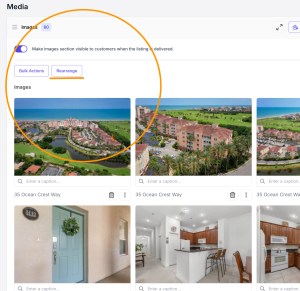 Want to rearrange the order of the pictures? No problem!
- Go to your property dashboard and open the Images tab.
- Select the button "rearrange"
- Drag and drop into the correct order
- Scroll to bottom of page and click "save"
Creating a QR Code for Marketing Materials
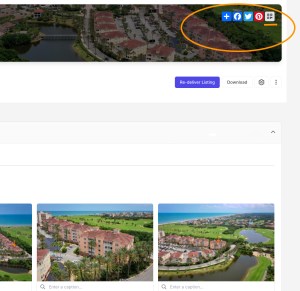 Generate a free QR code for use on fliers, social media, etc. Once you click the icon, it will automatically download to your computer's download folder.
For advanced users who use the marketing center, once you download the QR code, you can upload it to your project images. Here are the steps:
- Download the QR Code to your desktop
- Go to Images tab and click "add" and select the QR code from your desktop
- While in the images tab, scroll to the QR code you just added, click the three "vertical dots button" to exand your photo options.
- Click "hide in gallery" so you don't get fined in the MLS for having a branded element online.
- Scroll to the bottom of the page and click "save"
- Now that the QR code is added to your project and safely hidden from your website, you can go to your marketing center and drag & drop the QR code to your property fliers and graphics!
Where is my Zillow Video? How do I Add my Video to the MLS?
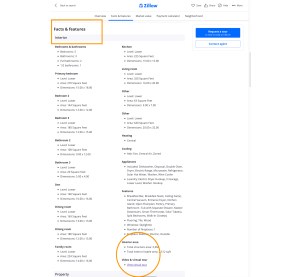 Your videos are in Zillow … they've just burried the link.
Zillow automatically pulls your video link from the MLS, so if you've added your video link to the MLS – then it will automatically feed to Zillow. It is under the "Facts & Figures" section under "Video & Virtual Tour."
There are two ways to add your video to the MLS:
- Copy and paste your UNBRANDED website link into the MLS
- Go to your "Videos" tab and copy the UNBRANDED video link then paste into the MLS
2D Floor Plans Now Automatically Featured in Redfin
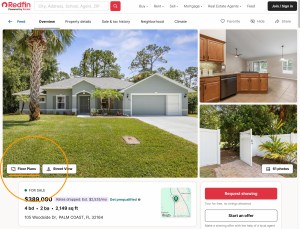 If you purchase a 2D Floor Plan, Redfin will automatically populate the listing with the 2D floor plan rendering. The floor plan has it's own tab so viewers can easily access it.